YubiKey Setup Guide: Hardening Google, Apple, and Bitwarden with FIDO2 Hardware Keys
A step-by-step technical implementation manual for deploying FIDO2/WebAuthn physical hardware tokens to establish mathematically unphishable multi-factor authentication across high-threat accounts.
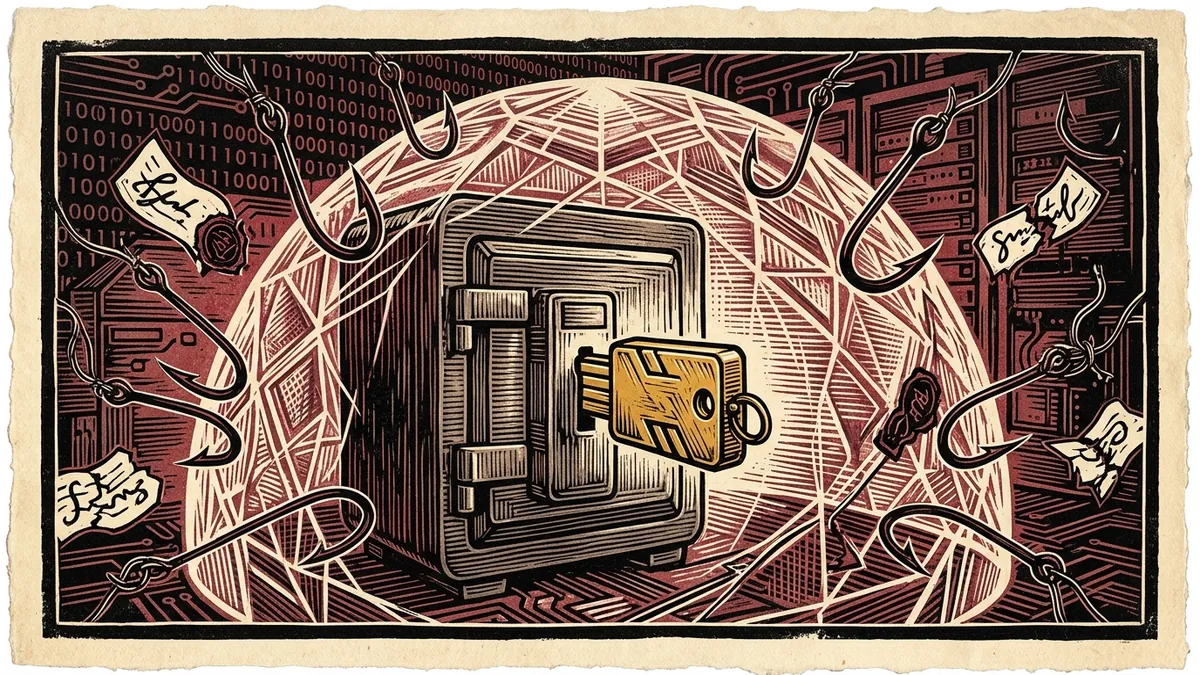
For investigative journalists, legal defenders, and national security researchers, traditional authentication methods—passwords, SMS verification codes, and even mobile authenticator apps (TOTP)—no longer provide adequate protection against sophisticated state adversaries.
Modern cyber espionage operations deploy reverse-proxy adversary-in-the-middle (AiTM) phishing kits (such as Evilginx). When an investigator enters their password and 6-digit TOTP code into a spoofed login page, the proxy intercepts the session authentication token in real time, bypassing multi-factor authentication within seconds.
The only mathematically proven countermeasure against AiTM phishing is FIDO2 / WebAuthn hardware security keys (most notably the YubiKey 5 Series). Because hardware keys cryptographically bind authentication credentials to the exact, verified domain origin in the browser address bar, credentials cannot be phished—even if the user is tricked into typing their password on a fraudulent page.
This guide details the operational deployment of FIDO2 hardware keys across primary identity providers: Google Advanced Protection, Apple ID, and Bitwarden.
Generate OpenPGP Keys Client-Side
Create air-gapped PGP public/private key pairs and master email encryption workflows for Outlook and webmail in private browser memory.
Launch Secure Email Studio1. Why FIDO2/WebAuthn Is Mathematically Unphishable
To understand why a hardware key succeeds where SMS and Google Authenticator fail, consider the WebAuthn challenge-response cryptographic handshake:
[USER BROWSER] ◄── [1. CHALLENGE + ORIGIN: "accounts.google.com"] ──► [GOOGLE SERVER]
      │
      ▼
[2. SENDS ORIGIN & CHALLENGE VIA USB/NFC TO YUBIKEY]
      │
      ▼
[3. YUBIKEY SIGNS CHALLENGE USING PRIVATE KEY REGISTERED STRICTLY TO "accounts.google.com"]
      │
      ▼
[4. SENDS CRYPTOGRAPHIC SIGNATURE BACK TO GOOGLE] ──► AUTHENTICATION GRANTED!
The Reverse-Proxy Phishing Scenario
Suppose an adversary lures an investigator to a malicious phishing domain: accounts.goog1e.com:
1. The user inputs their master password.
2. The browser requests the YubiKey to sign a challenge for accounts.goog1e.com.
3. The YubiKey inspects its internal secure element. It finds no credentials registered for the domain goog1e.com, or it generates a signature tagged with goog1e.com.
4. When the phishing proxy forwards this signature to the real Google server, Google’s server rejects it immediately because the cryptographic domain signature fails to match accounts.google.com.
5. Result: The phishing attack fails instantly.
2. The Golden Rule of Hardware Tokens: The “Rule of Two”
[!CAUTION] Never configure a single hardware key without a registered backup. If you lose your only hardware key or it suffers physical damage while traveling, you run a severe risk of being permanently locked out of your digital accounts.
Every high-threat operational setup requires at least two identical keys: 1. The Primary Key (Day-to-Day Carry): A USB-C/NFC key (such as the YubiKey 5C NFC) kept on your primary keychain or permanently inserted into your laptop. 2. The Backup Key (Air-Gapped Vault): An identical key registered simultaneously to all accounts and stored in a secure physical location (e.g., a home fireproof safe or offsite vault).
┌────────────────────────────────────────────────────────────────────────┐
│                   THE TWO-TOKEN REDUNDANCY ARCHITECTURE                │
├────────────────────────────────┬───────────────────────────────────────┤
│ TOKEN 1: PRIMARY (EVERYDAY)    │ TOKEN 2: BACKUP (SECURE VAULT)        │
│ YubiKey 5C NFC on keychain.    │ YubiKey 5 NFC in physical fire safe.  │
│ Authenticates daily logins.    │ Pre-registered to all master accounts.│
└────────────────────────────────┴───────────────────────────────────────┘
3. Step-by-Step Hardening Walkthroughs
1. Google Advanced Protection Program
For journalists and human rights activists, Google’s Advanced Protection Program is the most resilient free security architecture available. It completely removes SMS, voice, and mobile prompt fallbacks, requiring a physical hardware key for all new logins.
[MYACCOUNT.GOOGLE.COM] ──► [SECURITY] ──► [2-STEP VERIFICATION] ──► [SECURITY KEYS] ──► [ENROLL IN ADVANCED PROTECTION]
- Navigate to
myaccount.google.com/security. - Under “How you sign in to Google,” select 2-Step Verification.
- Scroll down to Security Keys and click Add security key.
- When prompted by your browser, plug your primary YubiKey into your USB port and touch the gold capacitive sensor.
- Enter a memorable name (e.g.,
YubiKey-Primary-Keychain). - Immediately click “Add security key” a second time and register your backup key (
YubiKey-Backup-Safe). - Once both keys are confirmed, navigate to
landing.google.com/advancedprotectionand click Enroll.
2. Apple ID Hardware Security Keys (iOS & macOS)
Apple allows users to enforce FIDO2 physical keys across all Apple devices, safeguarding iCloud photos, notes, and device backups:
- On iPhone or iPad, open Settings ➔ Tap your Name (Apple Account) ➔ Sign-In & Security.
- Select Two-Factor Authentication ➔ Security Keys.
- Tap Add Security Keys (Apple mandates adding at least two physical keys before activation).
- Tap your primary NFC YubiKey against the top-rear edge of the iPhone. Name the key.
- Tap your second backup YubiKey.
- Once configured, SMS verification is permanently deactivated.
3. Bitwarden Password Manager Master Hardening
Protecting your password vault is the cornerstone of your operational security:
- Log in to the Bitwarden web vault (
vault.bitwarden.com). - Navigate to Settings ➔ Security ➔ Two-Step Login.
- Under the “FIDO2 WebAuthn” row, click Manage.
- Insert your YubiKey, assign a name, and touch the key sensor.
- Click Save and repeat for your backup key.
- Critical Step: Once FIDO2 is active, disable all email and authenticator app TOTP fallbacks in Bitwarden to prevent adversaries from targeting weaker 2FA options.
4. Hardware Key Comparison Matrix
| Hardware Key Model | Form Factor | Connectivity | Primary Investigative Advantage |
|---|---|---|---|
| YubiKey 5C NFC | Keychain token | USB-C & NFC | The best all-around key for modern laptops and mobile smartphones. |
| YubiKey 5 Nano | Ultra-compact | USB-A or USB-C | Sits flush inside laptop USB port; ideal for laptops that never leave your sight. |
| Google Titan Key | Keychain token | USB-C & NFC | Cost-effective alternative manufactured specifically for FIDO2 compliance. |
| OnlyKey | PIN-protected token | USB-A / USB-C | Features an onboard physical keypad; requires PIN entry before cryptographic signing. |
By eliminating phishable verification codes and mandating physical cryptographic challenges, investigative researchers establish an impenetrable digital perimeter.
How to Set Up YubiKey FIDO2 Security Keys
Hardening high-threat accounts against adversary-in-the-middle phishing attacks using FIDO2 physical keys.
- Procure Two Identical Hardware Keys (Primary + Vault Backup): Maintain one daily-carry USB-C/NFC key and one secondary key stored in an offsite fireproof safe.
- Register Primary Key in Google Advanced Protection: Navigate to Google Security settings and enroll primary hardware key via WebAuthn challenge.
- Immediately Enroll Secondary Backup Key: Register the backup key before completing enrollment to prevent permanent lockout.
- Configure FIDO2 WebAuthn on Bitwarden Vault: Enable FIDO2 WebAuthn under Bitwarden Two-Step Login settings.
- Disable Insecure SMS and Voice Fallbacks: Permanently remove phone number verification fallbacks to neutralize SIM-swapping threats.
Frequently Asked Verification Questions
Key technical principles, error traps, and diagnostic standards for investigative researchers.
Why is FIDO2 immune to reverse-proxy phishing attacks?
What happens if I lose my only hardware security key?
Secure High-Risk Accounts & Generate Cryptographic Secrets
Eliminate phishing and SIM-swapping risks with WebAuthn hardware keys, and generate secure client-side cryptographic passphrases.
About the Contributor
The Dawat Forensic Research Desk specializes in operational security architectures, cryptographic authentication, and threat defense.
Related Research & Dispatches
How to Install Tails OS on a USB Flash Drive: The Complete Setup & Persistent Storage Guide
A step-by-step technical walkthrough for creating a cryptographic Amnesic Incognito Live System (Tails) USB dr...
How to Tell if Your Phone is Tapped: The Technical Guide to Detecting Spyware, IMSI-Catchers, and Surveillance
A forensic diagnostic manual for uncovering commercial stalkerware, state-grade spyware like Pegasus, rogue ce...
YubiKey vs Google Titan: The Technical Hardware Security Key Comparison
An architectural and cryptographic comparison of YubiKey 5 Series vs Google Titan Security Keys for FIDO2 pass...